Why a 3D-Printed QR Code Won't Scan: A Troubleshooting Checklist
A printed QR code that will not scan almost always fails for one identifiable reason. This page gives you a decision tree, a symptom table tied to the exact messages in the tool's Scan check, a six-step phone test, and the numbers behind each fix: contrast, module size, quiet-zone margin and link length.
Start by finding which half of the problem you have
A code fails for one of two reasons. Either the data is wrong (a typo, a dead link, a wifi field that never decodes), or the data is right and the object is hard to read (low contrast, tiny modules, glare, warping). A module is one small square of the code; the tool makes them 1.7 mm (Small), 2.3 mm (Medium) or 3.0 mm (Large) wide.
If you have already printed, open the tool with the same settings and read the Scan check (question 2): it shows in seconds whether the design was the problem.
Symptom table: from what you see to what you change
The "What to check" column quotes the matching Scan check message wherever the tool has one.
| Symptom | Likely cause | What to check | Fix |
|---|---|---|---|
| The camera never reacts | Low contrast, tiny modules, or content that never decodes | Scan the on-screen preview. Look for the red "Contrast too low" or "Module size ... below 1.5 mm". | Pale base, near-black code (the default pair is 15.1:1). Under 1.5 mm, go one size up or shorten the link. |
| Reads from arm's length, not up close | Phone is inside its focus distance (typically about 10 cm) | Back off to 15-30 cm and wait a second. | Nothing to reprint. |
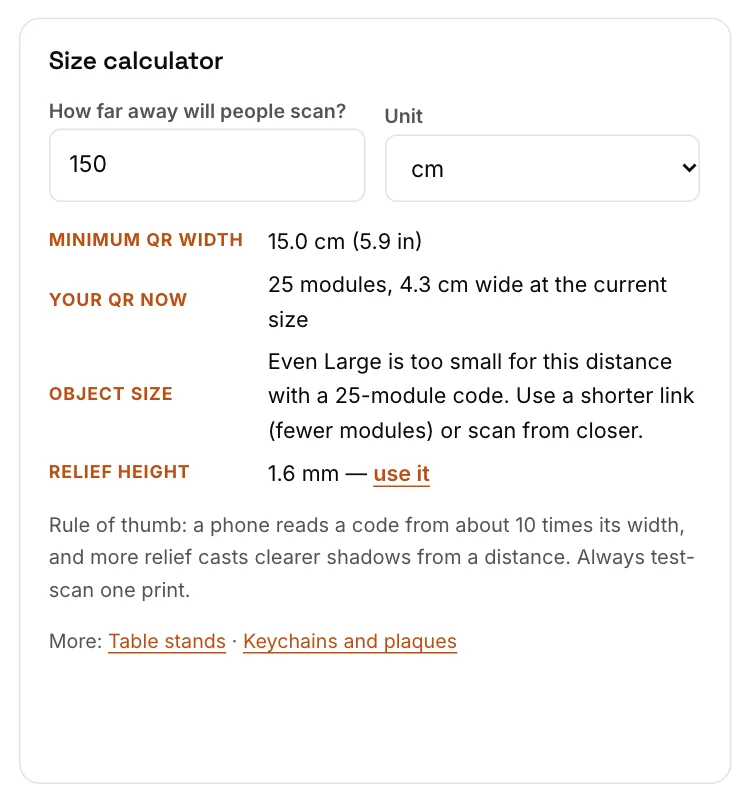
| Reads up close, not across the room | Code too small for the distance | Size calculator: minimum width in mm equals distance in cm. | Move closer, go one size up, or cut modules. A 25-module Large code (75 mm) cannot serve 150 cm. |
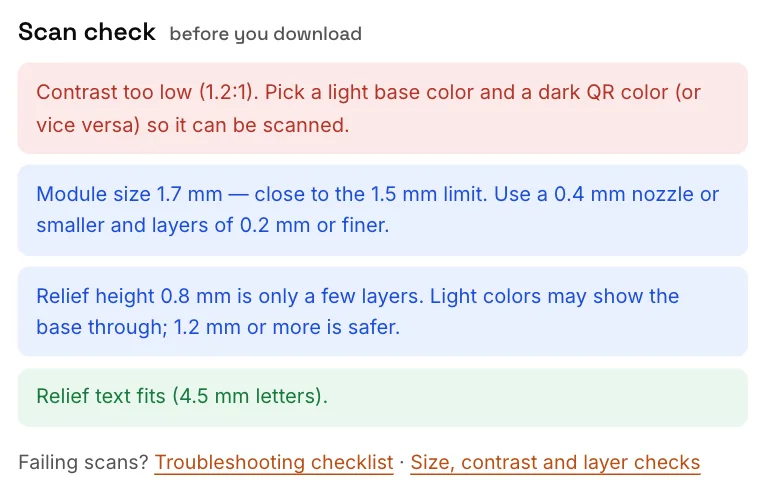
| Works on screen, fails printed | Nozzle rounds corners and fills gaps | Blue "Module size 1.7 mm — close to the 1.5 mm limit". | 0.4 mm nozzle or smaller, layers of 0.2 mm or finer, one size up. |
| Fails under a lamp or window; glints on the modules | Glossy or silk filament mirrors the light | Tilt the object under a lamp. The Scan check cannot see finish. | Reprint in matte filament; matte clear spray may help (test on scrap). |
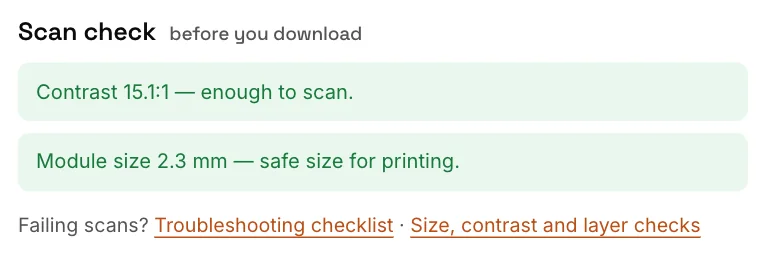
| Reads on one phone, not another | Marginal design or older scanner software | Blue "Contrast 3.8:1 — borderline" or "The QR is lighter than the base (inverted code)". | Move every line to green: 4.5:1 or more, modules 1.9 mm or more, dark code on light base. |
| Opens the wrong page | Typo, outdated link, wrong redirect, or a page that needs a login | Read the link the camera shows, then open it on mobile data. | Correct and reprint; use a short redirect you control next time. |
| Fails only with a logo or emoji | The logo covers up to 38% of the width (about 14% of the area) and forces the strongest error correction | Blue "With a center logo/emoji, high error correction is used". Remove it and re-scan. | Drop the logo or print larger. A short link grows from 25 to 29 modules. |
| Blurry edges, strings or blobs between modules | Stringing, wet filament or over-extrusion joins neighbors | Inspect with a magnifier or phone macro mode. | Dry the filament, tune retraction, reprint. One 0.4 mm line is 24% of a 1.7 mm module but 13% of a 3.0 mm one. |
| The two colors look alike | Under 3:1, or similar lightness (red and green can be about 1.0:1) | Red "Contrast too low (1.2:1)". | One near-black, one pale; confirm 4.5:1 or more. |
| Relief looks flat; the base shows through | 0.8 mm is only four layers at 0.2 mm | Blue "Relief height 0.8 mm is only a few layers". | 1.2 mm (default) or more; 1.6 mm for 1-3 m. |
| Reads only at one angle; object tilted or warped | Base not flat, or phone far off-axis (the stand's code face is tilted 38°) | Lay a straight edge across the print and look for gaps. | Hold the phone parallel to the code face; brim or cleaner bed for warping; mount plaques flat. |
| Relief text crowds the code | Text is shrunk to fit; letters under 3 mm blur | Blue "Relief text is wider than the object, so it is shrunk ..." or the red "too long" message. | Shorten the text (24 characters maximum) or go one size up. Clear it and re-test. |
| Slow to lock on | Long link, many small modules | Size calculator, "Your QR now": count modules. | Shorten the link (see below). |
Reading the Scan check
The Scan check sits under the 3D preview and updates as you change colors, size or relief. Red means fix before printing, blue means read the note, green means that line passes. Here a design has problems:
And this is the target, every line green:
| Check | Red | Blue note | Green |
|---|---|---|---|
| Contrast (WCAG luminance ratio) | Under 3:1 | 3:1 to 4.5:1; also "inverted code" when the QR is lighter than the base | 4.5:1 or more |
| Module size | Under 1.5 mm | 1.5 to 1.9 mm | 1.9 mm or more |
| Relief height | - | Under 1.0 mm (the 0.8 mm option) | No message |
| Relief text | Letters shrink under 3 mm | Text shrunk to fit | Text fits |
| Object size | Over 250 mm | Over 180 mm | No message |
| Center logo/emoji | - | Always: high error correction, test scan | - |
Green is not a guarantee. The Scan check tests numbers. It cannot see glare, stringing, a warped base, the room's lighting or how a guest holds the phone. That is why the phone test comes next.
A six-step phone test
Use the phone's built-in camera app, which is what most guests will use. Change one variable at a time and write down every result.
- Screen first. Scan the on-screen preview. If it fails, the problem is the content. If it passes, compare the link the phone shows with what you typed.
- Printed object, ideal conditions. Bright, even light, no reflections, phone parallel to the code, 20-30 cm away. Failing here means a design or print problem, not a placement problem.
- Distance. Try close, normal and far. A code reads from about 10 times its width, so a 57.5 mm code (25 modules at Medium) should read from roughly 57 cm. Note the farthest distance that still locks on within a couple of seconds.
- Angle. Tilt 0°, 30° and 45° off perpendicular. The code looks compressed by the cosine of the angle: 0.87 at 30°, 0.71 at 45°, so a marginal code fails first when tilted.
- Light. Test the real place, one condition at a time: window behind you, lamp to one side, dim room.
- Second phone. Repeat steps 2 and 3 on a phone of another brand or age. If only that phone fails, the design is marginal: push the Scan check lines toward green.
| Test | Condition | Phone A | Phone B | Note |
|---|---|---|---|---|
| 1 Screen | Preview | OK | OK | Link matches |
| 2 Print | Bright light, 25 cm | OK | Slow | B needs 3 tries |
| 3 Distance | Far (57 cm) | OK | Fail | Marginal size |
| 4 Angle | 45° tilt | Slow | Fail | Note the angle |
| 5 Light | Side lamp | Glare | Glare | Glossy filament |
| 6 Second phone | Older phone | - | Fail | Raise contrast |
If two retests show the same failure, change the design and reprint instead of rescuing the object. A corrected second print usually costs less than an afternoon of painting and sanding.
The quiet zone: why a border, pendant or frame breaks a code
Every QR code needs an empty, plain margin around it, the quiet zone. The QR standard asks for 4 modules on every side. The scanner uses it to find the three big square "finder" patterns, which must stand out against something plain.
| Module size | Standard (4 modules) | Tool margin 4 mm (stand, keychain) | Tool margin 5 mm (plaque) |
|---|---|---|---|
| Small, 1.7 mm | 6.8 mm | 2.4 modules | 2.9 modules |
| Medium, 2.3 mm | 9.2 mm | 1.7 modules | 2.2 modules |
| Large, 3.0 mm | 12.0 mm | 1.3 modules | 1.7 modules |
The tool keeps its margins small so the object stays compact. Phone scanners often cope with less than 4 modules when the surroundings are plain and light, but that is a tolerance, not a promise. Treat the built-in margin as the minimum:
- Frames and bezels. A raised rim or dark holder touching the edge puts dark next to the finder patterns. Leave a plain strip or use a pale frame.
- Dark mounting surfaces. A pale plaque on black wood is edged by dark. Mount it on a pale background.
- Holes, screws and key rings. The keychain has a 4.2 mm ring hole and the plaque two 3.6 mm holes near its top corners. A ring, cord or screw head lying over the code removes modules, so keep dark or metal parts clear of it.
- Stickers and relief text. Anything dense beside the code counts as clutter. If text was shrunk, clear it and re-test.
Check what is actually encoded
Many "won't scan" reports are really "scans to the wrong place". Before blaming the print:
- Read before opening. The camera app normally shows the decoded link first. Compare it character by character:
httpversushttps, a missingwww, a trailing space. - Open it on mobile data. Turn wifi off. A link that works only on your network or while you are logged in fails for every guest.
- Count the length. The Size calculator shows the module count under "Your QR now".
Longer link, denser code
More characters need more modules, so at a fixed width the modules shrink. The table uses the QR standard's byte-mode capacities for error-correction level M (no logo) and H (the level the tool uses with a logo or emoji). The tool picks the smallest size that fits, so yours may differ slightly.
| Content | Characters | Modules (no logo / logo) | Width at Medium (no logo) | Module size if forced into 57.5 mm |
|---|---|---|---|---|
https://example.com/m | 21 | 25 / 29 | 57.5 mm | 2.3 mm |
https://g.page/r/your-cafe/review | 33 | 29 / 33 | 66.7 mm | 2.0 mm |
| A typical wifi payload | 50 | 33 / 41 | 75.9 mm | 1.7 mm |
| Menu link with tracking parameters | 119 | 45 / 57 | 103.5 mm | 1.3 mm (red) |
| Same link plus a session ID | 171 | 53 / 69 | 121.9 mm | 1.1 mm (red) |
Example: a café's menu link with tracking parameters runs to 119 characters. At Medium it makes a 45-module code 103.5 mm wide. Forced into 57.5 mm, each module is 1.3 mm and the Scan check turns red. Behind a 22-character address the same menu stays at 25 modules and 57.5 mm. Spaces, accented letters and emoji in a link take several bytes each and add modules.
Shorten it without a third-party service
Put a short path on a domain you own and redirect it to the long page. The code holds only the short address, and you can change the destination later without reprinting. Use a temporary (302) redirect so browsers do not cache the old target.
Apache (.htaccess):
Redirect 302 /m https://www.yourcafe.com/menu/lunch-and-dinner?utm_source=qrNginx (server block):
location = /m { return 302 https://www.yourcafe.com/menu/lunch-and-dinner?utm_source=qr; }Any static host (a page at /m/index.html):
<meta http-equiv="refresh" content="0; url=https://www.yourcafe.com/menu/lunch-and-dinner">Then encode https://yourcafe.com/m (22 characters, 25 modules without a logo) and test the redirect on mobile data before printing.
Wifi codes
Wifi mode builds WIFI:T:WPA;S:name;P:password;;, adding H:true; for hidden networks. The characters \ ; , : " in the name or password are escaped with a backslash, so Cafe;Guest becomes Cafe\;Guest. Passwords are case-sensitive and the security type must match the router.
What to change in the tool, and why it works
| Setting | Change | Technical reason |
|---|---|---|
| Object size | One step up: 1.7, 2.3 or 3.0 mm per module | A 0.4 mm nozzle lays lines about 0.4 mm wide. One line of error is 24% of a 1.7 mm module, 17% of 2.3 mm and 13% of 3.0 mm. |
| Link length | Shorten or redirect | Fewer characters, fewer modules, bigger modules at the same width. |
| Colors | Pale base, near-black code, well above 4.5:1 | Scanners separate code from base by lightness. Pigments, layer lines and shading compress the difference, so leave margin. |
| Relief height | 1.2 mm default; 1.6 mm for 1-3 m; 2.0 mm beyond | 0.8 mm is four 0.2 mm layers and 1.2 mm is six. More height stops the base showing through and casts clearer shadows at a distance. |
| Logo or emoji | Remove, then test | It forces level H, which adds modules, and hides about 14% of the code area. |
| QR style | Try Classic before Rounded, Dots or Elegant | Classic has square modules and finder patterns. Rounding removes solid area at each corner, and a Dots module is a circle covering roughly 79% of its cell if it is as wide as the cell. Small round shapes are harder for a nozzle to reproduce. The tool does not measure scan rates per style, so test yours. |
| Relief text | Shorten or clear it | It is shrunk to fit the width, and letters under 3 mm blur. |
The Size calculator turns the distance into a size: enter how far people will scan from and it names the smallest preset that meets the rule of thumb, never below the module count times 1.5 mm.
To reprint from a configured layout, open the table stand, wifi plaque or keychain template. For sizes, contrast and layers in depth, read the scanning guide.
Frequently asked questions
Is it the printer or the code that is wrong?
Scan the on-screen preview. If it works, the data is fine and the cause is physical, in the contrast, the finish, the size or the lighting.
Why does it scan on my phone but not on a guest's phone?
Your test may be marginal. Different phones differ in camera quality and scanner software, so increase the module size and use a dark code on a light base.
Can a logo make a code fail?
A small logo is handled by the higher error correction the tool applies. A very large logo can leave too little redundancy, so keep it modest and test.
Can I rescue a glossy print?
Sometimes. A light coat of matte clear spray can reduce glare, but reprinting in matte filament is the reliable fix.
Does a green Scan check guarantee that the printed code will scan?
No. The Scan check tests numbers, such as contrast, module size and relief height. It cannot see glare, stringing, warping or the lighting in the room, so always finish with the phone test in this guide.
Try it in the tool
Put this guide into practice with these free tools:
Make your own 3D QR code
Re-check your design in the tool, watch for the contrast and module size messages, and test the preview before reprinting.
Open the free tool